BLOGDOG
Your personal cyber security and anti-hacking news
What Should I Do If My Twitter Account Was Hacked?


Do you think your Twitter account was hacked? Did you notice some tweets sent from your account that you didn’t compose? If you think you’ve been hacked and you still have access to your Twitter account, here are some steps you should take.
1. Check how your Twitter account was accessed
Go to your Twitter Data page and check which devices have logged into your account. You’ll see this under “Device History.”
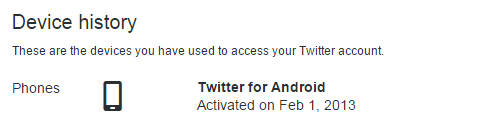
Also take a look at your Twitter login history, featured just below the device history. Note that this list features all access to your account, including access via a web browser and via apps. Web access through a browser will be listed as “Twitter.com” under the app:

There may be some apps such as LinkedIn, Flipboard, OSX and others that you’ve given permission to access your Twitter account. You’ll also see these featured in your Login History list. To revoke access to an unfamiliar app, go to your Apps Settings page and click the “Revoke access” button next to the app listing:

Note that, if you see suspicious activity through “Twitter.com,” this may be an indication that your account has indeed been hacked. If that’s the case, we recommend completing the steps listed below.
2. Change your password
Go to your Twitter Password page, which can be found on the right-side menu in your Settings page. Change your password, and be sure to use a complex password that would be difficult for a hacker or a machine to guess. A complex password is one that includes both lowercase and uppercase letters, at least one number, and a special character such as a question mark or exclamation point. Also, make sure your new password is at least eight characters long, and avoid using dictionary words.

3. Check your recent activity
When you’re logged into Twitter, click on your profile picture to view your Tweets list. Review this list and check for any tweets you didn’t publish. If you find any, click on the menu below each tweet (the menu looks like a horizontal row of three circles) and click “Delete Tweet” to remove the tweet from your feed.

4. Check your other accounts
Re-using passwords across different online accounts is a big security no-no, and yet many people do so. If you’re one of those people and you’re using the same password from your Twitter account on your other accounts such as Gmail or Facebook, change the passwords on those accounts right away. Attackers often reuse a breached password on other accounts the victim might have.
5. Enhance your Twitter security settings
Go to your Twitter Security and Privacy page, which can be found on the right-side menu on the Settings page. Once there, activate login verification.

With login verification enabled, Twitter will send a message to either your phone or Twitter app based on your selection, requiring that you approve any new devices that are trying to access your account.
6. Run an antivirus on your computer
Often times, hackers gain access to a victim’s accounts using malware that was installed on the victim’s computers. If your machine is infected with malware, changing your account passwords will be of little help, as the malware will capture your new passwords and send them straight to the hacker. For this reason, running a good antivirus scan on your computer and riding your machine of any malicious software is strongly recommended. See below for antivirus software recommendations.
What should I do if my Twitter password was changed?
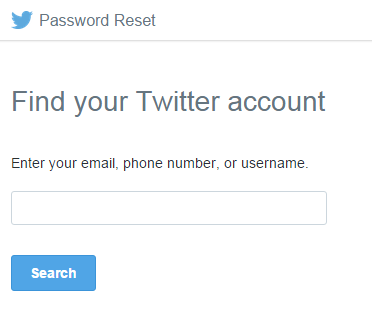
If your Twitter password has been changed and you can’t access your account to take the steps listed above, you can try to recover your password on the Twitter Password Reset page.
Think there’s a chance a hacker also got into your Facebook account? Check out our guide on What To Do If Your Facebook Was Hacked.
Take Control of Your Security
Perhaps now more than ever, it’s crucial to take a hands-on approach regarding the security of your personal data. Fortunately, you can use a number of freely available tools to help better safeguard your accounts and personal information. Here are a few suggestions:
- Get an antivirus solution for both your PC and phone. Check out these recommends for the Best Free PC Antivirus Software and Top 5 Android Security Apps.
- Never reuse the same password across multiple online accounts, and always make sure you use strong passwords that include letters, numbers, and at least one symbol (like an exclamation point or question mark). To keep track of your passwords and keep them safe and secure, use a password manager like PasswordBox.
- Get LogDog, a free anti-hacking app for Android. It protects your most valuable accounts (Gmail, Facebook, Yahoo and more) and alerts you to any suspicious activity so you can take control of your account before a hacker does.
Did you enjoy this post? If so, subscribe to get a weekly roundup from BlogDOG.
-
Thomas Zucker-Scharff